Word to PDF, Right in Your Browser
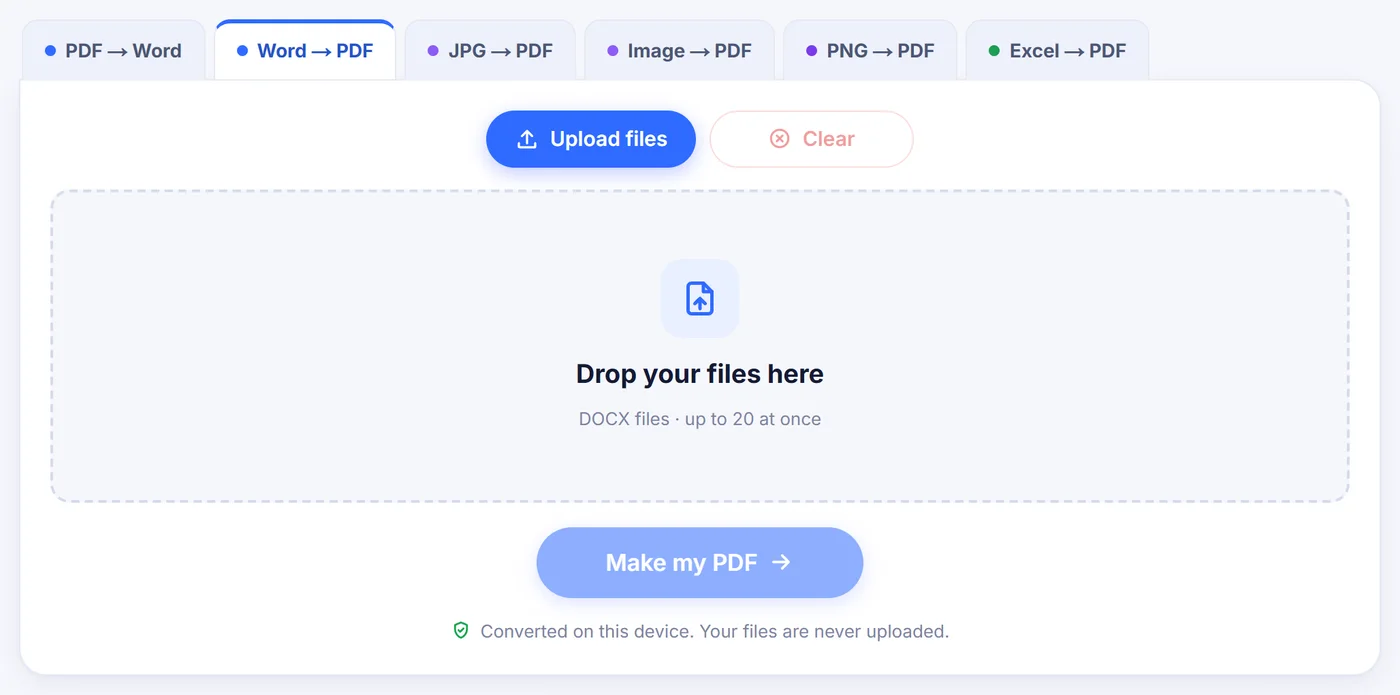
Word to PDF conversion that happens on your own computer or phone: drop in a .docx, check the first page, and save a clean PDF. The file is never sent anywhere.
Converted on this device. Your files are never uploaded.
How it works
Drop in your .docx
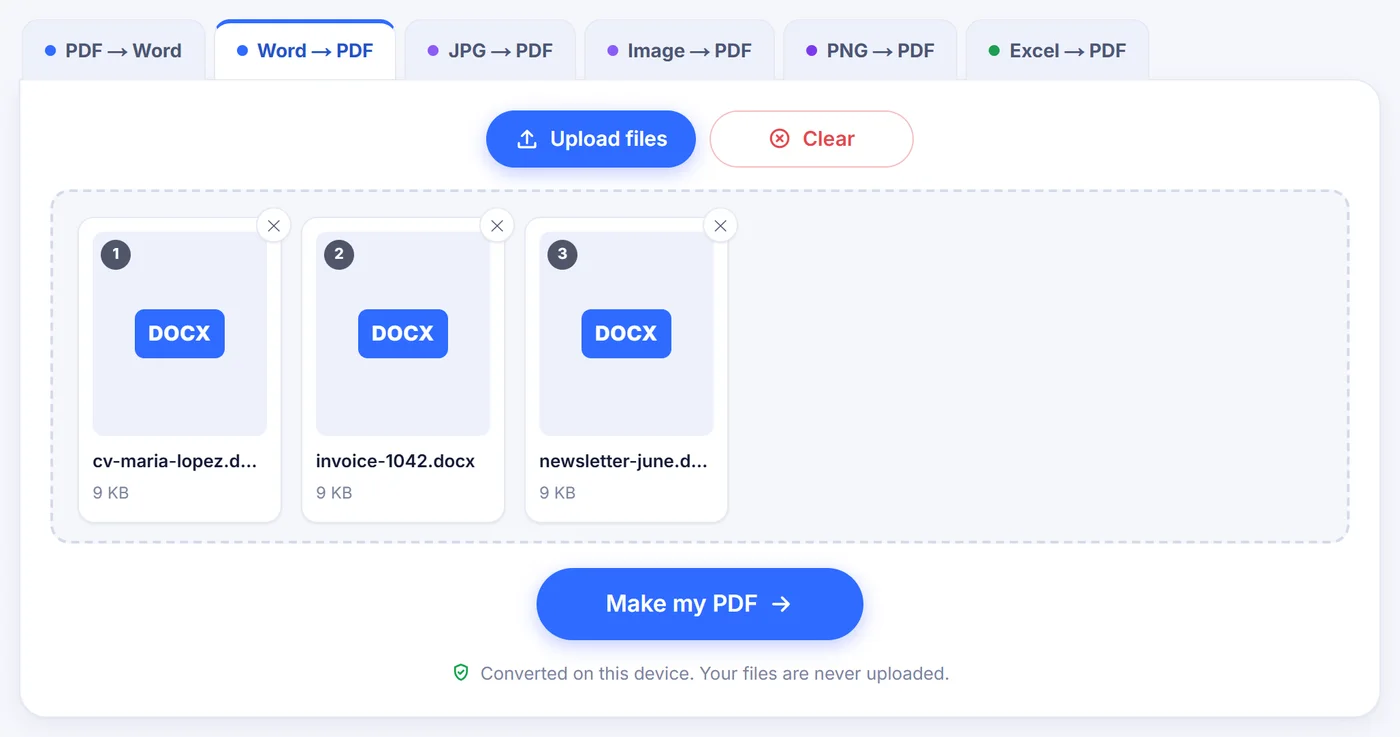
Add a single document or a batch of up to 20; anything that is not a modern Word file gets flagged with the reason.
Tune the pages
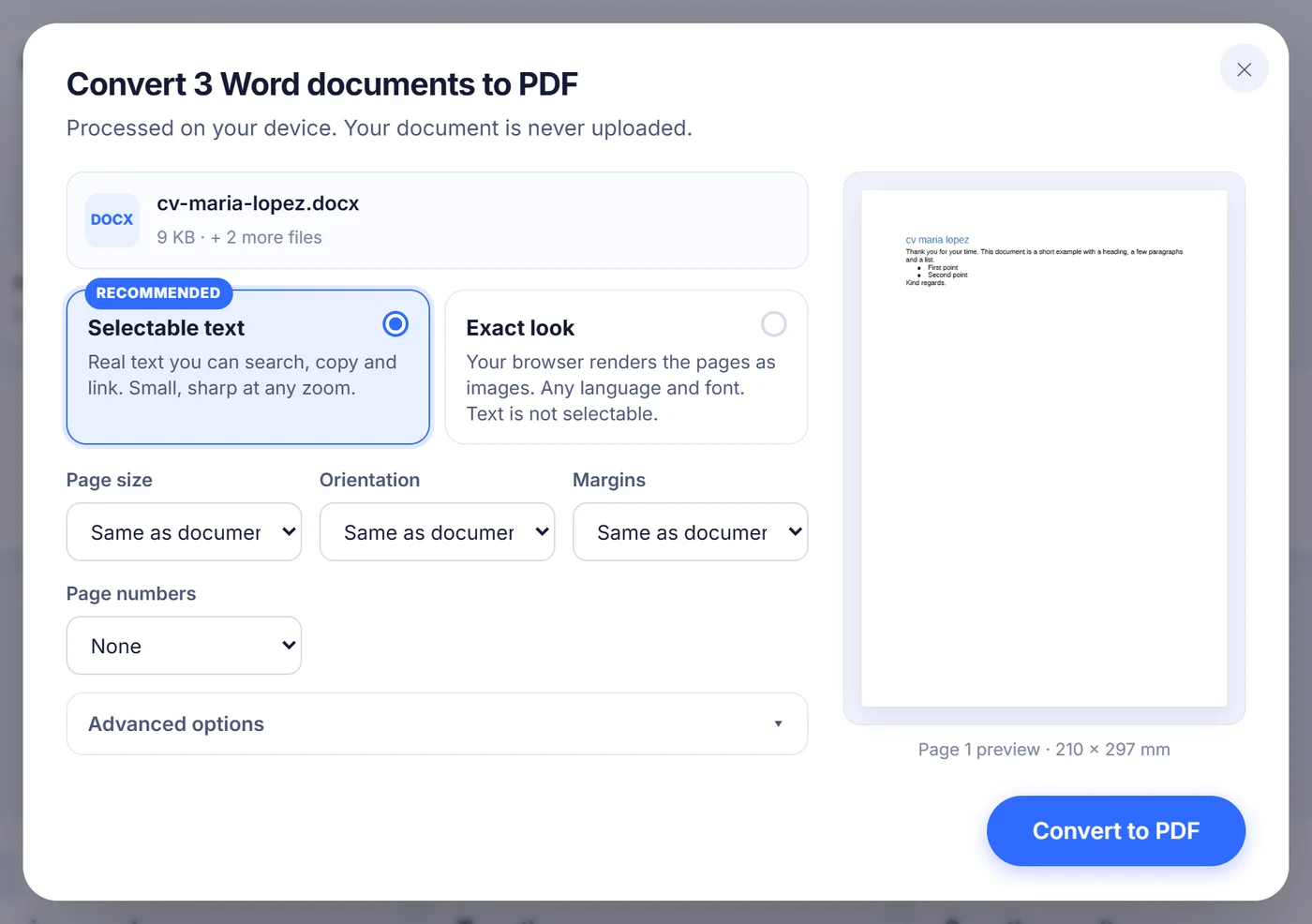
A live preview of page one updates as you change paper size, orientation, margins or page numbering.
Save the result
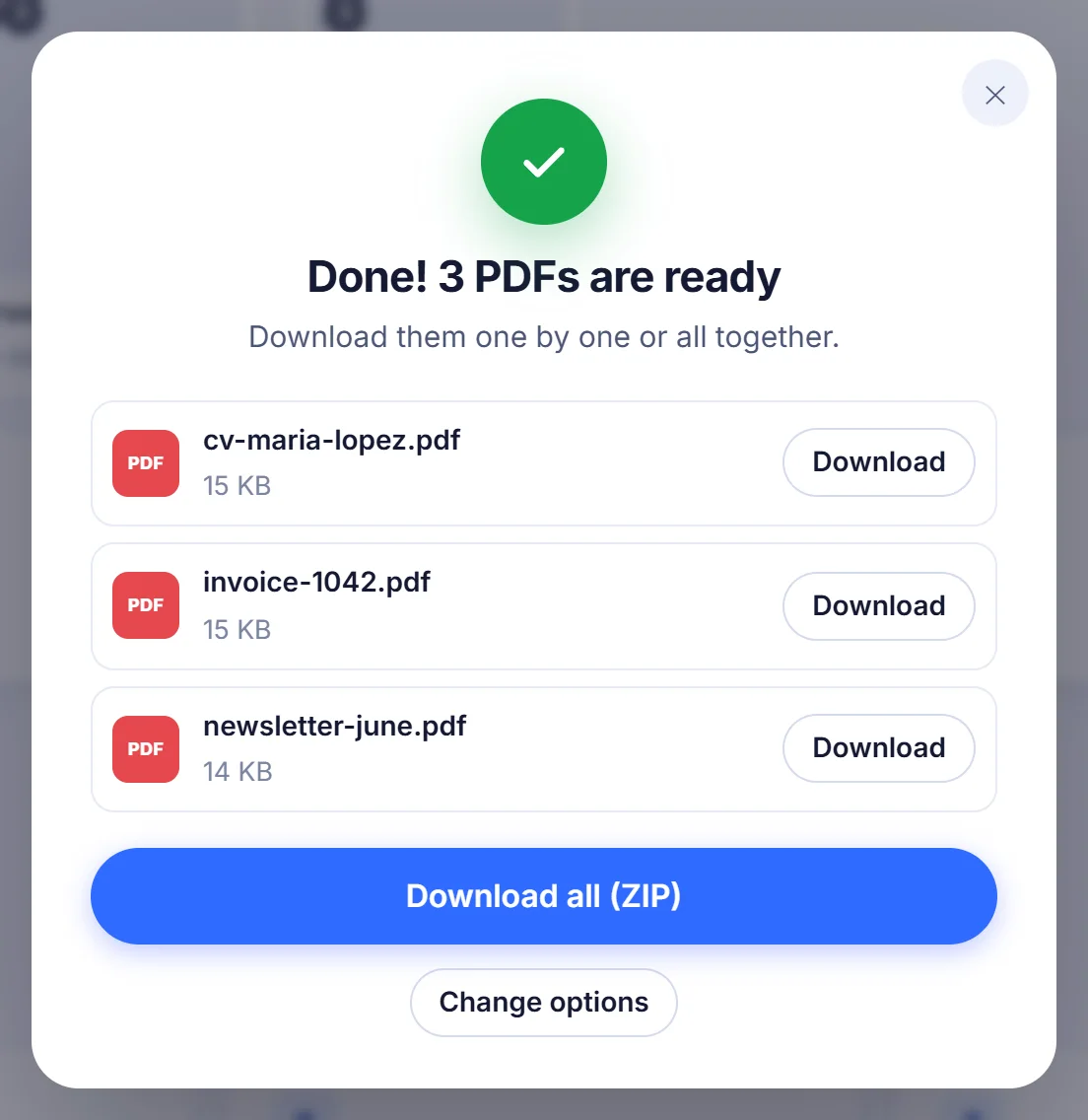
Each document becomes its own PDF with the same name, and a batch can be grabbed as one ZIP.
Why people still turn Word files into PDFs
A .docx looks different on every machine that opens it. Someone without the same fonts sees lines wrap in new places, a table spills onto the next page, and the neat numbered list you built starts at 2. A PDF freezes the pages. That is why job portals ask for a CV as PDF, why landlords and schools want forms that way, and why a contract is easier to sign when nobody can quietly edit a clause.
This page reads your Word document and lays it out again as proper PDF pages. You do not need Word installed or an account.
How the Word to PDF converter works here
When you add a file, the page first peeks at its opening bytes to make sure it really is a .docx and not something renamed. Then a small layout engine running in your browser reads the document structure: paragraphs, styles, list numbering, tables, pictures, links and footnotes. It breaks the text into lines, justifies it where you justified it, and paginates it with a few typesetting rules borrowed from word processors. A heading is kept together with the paragraph that follows it, a lone first or last line of a paragraph is not left stranded at the top or bottom of a page, and table rows you marked as header rows in Word are repeated on every page the table crosses.
The finished file contains genuine text, not photographs of text. You can press Ctrl+F to find a word, copy a sentence into an email, or zoom to 400% without blur.
The options you can set
- Page size: keep the size stored in the document, or force A4, US Letter or US Legal.
- Orientation: follow the document, or choose portrait or landscape.
- Margins: the document's own margins, or Normal (2.54 cm), Moderate, Narrow (1.27 cm), Wide and Minimal.
- Page numbers: none, a plain number at the bottom centre, "Page 1 of N" at the bottom centre, or a number at the bottom right.
- Fonts (under advanced settings): match the document's style, or use a sans-serif face everywhere.
- Bookmarks: on by default, so every heading appears in the PDF reader's side panel as a clickable outline.
Every change redraws the preview of page one after a moment, so you can see whether "Narrow" margins push your title onto a single line before you commit.
What carries over, and what gets simplified
Most everyday documents come through looking very close to the original. Bold, italic, underline and strikethrough survive, as do text colours, highlighter marks, superscript and subscript, small caps, paragraph shading, indents, tab stops with dot leaders, and the spacing before and after paragraphs. Bulleted and numbered lists keep their markers, including lettered and Roman numbering. Tables keep merged cells, column widths and cell shading; if a table has borders, they are drawn as a thin, even grid. Pictures in PNG, JPEG, GIF, BMP or SVG are placed at the size set in Word, shrunk only when wider than the text column. Web links, email links and phone links remain clickable, and the document's title and author are copied into the PDF properties.
A few things are handled differently, and it is better to know before you send the file:
- Typefaces. The PDF does not embed your exact font. Sans-serif text such as Calibri, Arial or Aptos is drawn with Liberation Sans, which has the same character widths as Arial. Serif text such as Times New Roman, Cambria or Georgia uses the standard PDF Times font, and code-style text uses Courier. Layout stays faithful; the letter shapes are a close cousin rather than an identical twin.
- Headers and footers are not reproduced. If you need numbering at the foot of each page, switch on the page numbers option.
- Footnotes keep their superscript numbers in the text, and their content is gathered after a short line at the end of the document.
- Text boxes and floating pictures join the normal flow of text instead of hovering at a fixed spot, and multi-column sections are set as a single column.
- EMF and WMF drawings, a format browsers cannot display, are replaced with a placeholder box; after a single-document conversion the result window tells you how many.
When the built-in font lacks a character
Liberation Sans covers Latin, Greek and Cyrillic alphabets well, but not scripts such as Chinese, Japanese, Korean, Arabic or Hindi. If your document uses characters the font does not have, the preview caption warns you, and the result window lists the missing symbols (or, for a batch, names the affected files). In that case reopen the options and choose Exact look. That mode lets your browser draw the document with the fonts installed on your device and stores each page as an image, so any script your system can display comes out readable. The trade-offs: pages are A4, the page options do not apply, the layout is plainer (one standard typeface, simpler spacing), there is no live preview, and the text cannot be selected or searched.
Fixing the usual problems
An old .doc file. The tool reads the .docx format introduced with Word 2007, not the Word 97-2003 .doc format. Open the .doc in Word, LibreOffice or Google Docs, save a copy as .docx, and add that copy instead.
"This file is protected with a password." An encrypted document cannot be opened without its key. In Word go to File, Info, Protect Document, Encrypt with Password, clear the field, save, and try again.
A .docx that is really something else. Some programs give a Word extension to RTF text, an old .doc or a web page. The converter checks the content rather than the name and tells you what the file really is, so you can re-save it from Word as a genuine .docx.
Large reports on a phone. Everything happens in memory, so a two-hundred-page manual full of photos needs more RAM than a short letter. If the page reports that memory ran out, close other tabs, try a laptop, or split the document into parts.
Converting a stack of documents
You can add up to twenty Word files in one go. Every valid file is converted with the same settings, one after another, and the progress bar names the document it is working on. Files that cannot be read are listed as skipped instead of stopping the whole batch. Each PDF keeps the base name of its source, so Invoice-March.docx becomes Invoice-March.pdf; if two files share a name, the second gets "(2)" added so nothing is overwritten. Download them one by one or as a single ZIP.
Where your document goes: nowhere
The conversion code runs in your browser tab, and your file is processed right there. There is no server copy, no queue, no storage period. When you close the tab, the document and the PDF exist only where you saved them. That suits payslips, medical letters, draft contracts and anything else you would rather not hand to a stranger.
Frequently asked questions
How do I convert a Word document to PDF without Microsoft Word?
Open this page in Chrome, Edge, Firefox or Safari, add your .docx file and press the convert button. The PDF is built by your browser, so Word does not need to be installed.
Will the PDF have selectable, searchable text?
Yes. The default mode writes real text into the PDF, so you can search, copy and highlight it. Only the optional Exact look mode produces image-based pages without selectable text.
Why does my PDF use a slightly different font?
Fonts are mapped to three families: sans-serif text uses Liberation Sans (same widths as Arial), serif text uses Times and monospaced text uses Courier. Line breaks stay close to the original, but the letter shapes can differ from fonts like Calibri.
Can I convert a .doc file from Word 2003?
Not directly. Save it as .docx in Word, LibreOffice or Google Docs first, then convert the new copy here.
Are headers, footers and footnotes kept?
Headers and footers are left out, but you can add page numbers at the bottom of each page. Footnote numbers stay in the text and the notes themselves appear together at the end of the document.
Can I convert several Word files to PDF at once?
Yes, up to 20 at a time. Each document becomes a separate PDF with its original name, and you can download them all as one ZIP.
Is it safe to convert confidential documents here?
Your file is processed inside your browser and is never sent to a server. Closing the tab removes everything the page held in memory.